Blender and file formats
FBX to OBJ in Blender: Keep Textures, Know What Gets Lost

Short answer: to convert FBX to OBJ, open Blender, use File > Import > FBX, then File > Export > Wavefront (.obj) with Materials on and Path Mode set to Copy. Geometry, UVs and the base color texture come through. What OBJ cannot keep is the object hierarchy, pivots and anything animated, and if the FBX embeds its textures you must unpack them before exporting or the MTL will point at images that were never written.
This guide is built on a conversion we actually ran on October 26, 2026: two delivered models from our game assets, converted FBX to OBJ and back again in Blender on macOS, with every object, origin, material and texture path logged before and after. The steps follow the official Blender manual pages for Wavefront OBJ and Packed Data.
Converting FBX to OBJ in Blender, step by step
Online converters work for a single static mesh, but they hide the decisions that decide whether your textures survive. Blender shows them. The whole conversion takes a minute once you know which options matter.
- Start from an empty scene. File > New > General, then delete the default cube, camera and light so they do not end up in your OBJ.
- Import the FBX. File > Import > FBX (.fbx). Keep the default settings for a static model.
- Check the textures. Open the Shading workspace or the Image Editor and look at the image names. A small gift box icon next to an image path means the texture is packed inside the file (the FBX embedded it). If you see it, follow the unpacking steps in the next section before exporting.
- Remove what OBJ should not carry. Delete or hide helper meshes such as collision proxies, or select only the visible meshes and tick Selected Only on export.
- Export. File > Export > Wavefront (.obj). In the Materials panel keep Export on and set Path Mode to Copy. Leave UV Coordinates and Normals on.
- Verify. Re-import the OBJ into a fresh scene and confirm the textures display. That one check catches nearly every broken conversion.
The Blender manual describes Copy as copying each referenced file on export and pointing at it with a relative path. That is what makes the result portable: the OBJ, the MTL and the PNGs land in one folder you can zip or move.
What we measured: two real FBX files, before and after
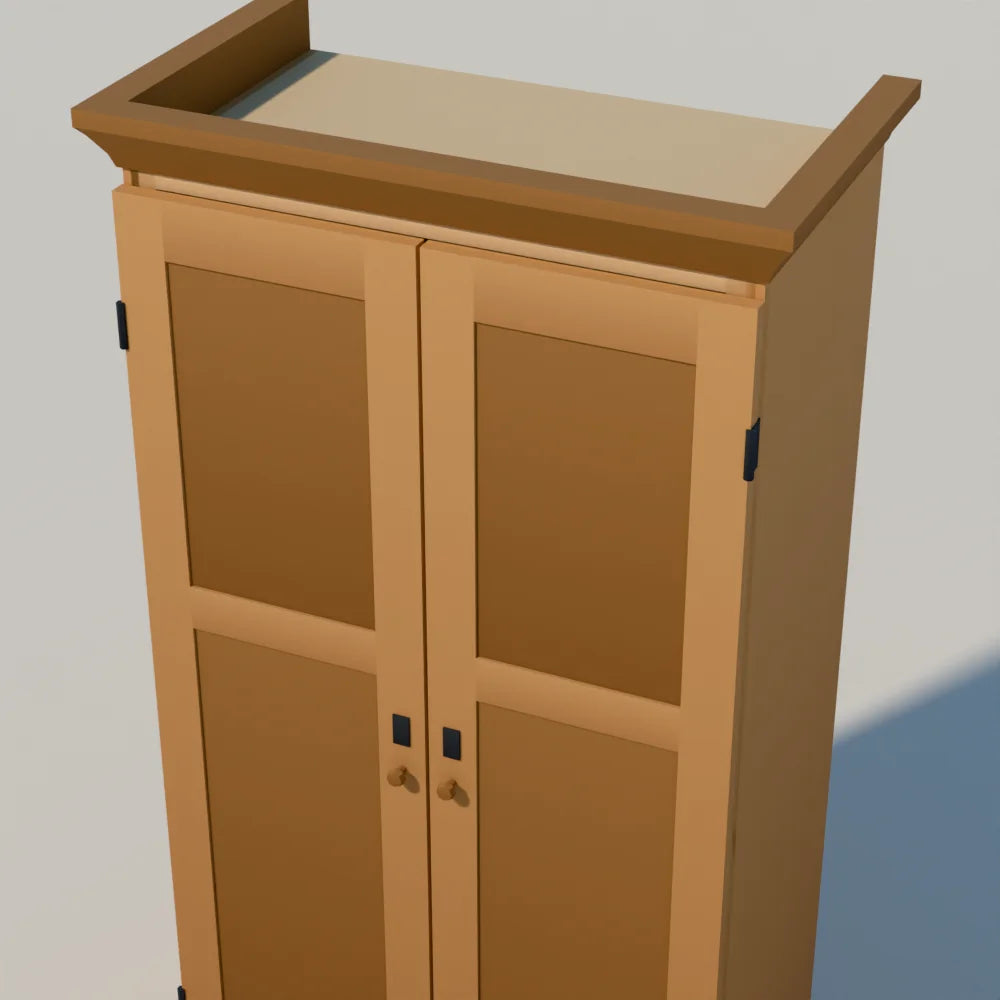
We converted two models whose FBX files handle textures in opposite ways. The Oak Two-Door Wardrobe (1,064 triangles, 1.00 by 0.58 by 1.95 m) references its shared atlas as separate PNG files. The Oak Ale Barrel (1,122 triangles, 0.68 by 0.69 by 0.92 m) carries its palette textures inside the FBX.
| Check | Wardrobe FBX | Wardrobe after FBX to OBJ | Barrel after FBX to OBJ |
|---|---|---|---|
| Triangles | 644 body, 210 per door, 12 collision | Identical | 1,122, identical |
| Hierarchy | Root empty, body, doors parented to the body | Four flat objects, no parents, no empty | One object (none to lose) |
| Door origins | On each door's hinge side, 1.015 m up | All at the world origin | Not applicable |
| Base color and emission maps | Linked | Linked, PNGs copied next to the OBJ | Missing until unpacked, then linked |
| Collision proxy | Separate mesh, no material | Exported, and picked up the atlas material | Not applicable |
Geometry is never the problem. Every triangle count matched exactly. The losses are all structural and material bookkeeping, which is why a quick visual check of a converted file can look fine while the file is broken for a game engine.
Keeping textures: Path Mode and packed images
An OBJ never contains images. Its MTL file lists texture file names, and the importer looks for those files on disk. So the question is always where the images are and what path the MTL writes.
Textures next to the FBX. For the wardrobe, the default Path Mode (Auto) wrote absolute paths into the MTL, pointing back into the folder we imported from. It worked on our machine and would break on anyone else's. Path Mode set to Copy put LV_Atlas.png and its emissive companion beside the OBJ and wrote bare file names. That is the setting to use.
Textures embedded in the FBX. The barrel FBX stores its palette images inside the file, and Blender keeps them packed after import. With Copy selected, the export still wrote an MTL naming hh_palette_basecolor.png and hh_palette_emissive.png, but it did not write either image. Re-importing that OBJ gave a mesh with empty texture slots. The fix, from the Packed Data page of the Blender manual:
- Save the scene as a .blend in the folder where you want to work. Unpacking writes relative to the saved file.
- File > External Data > Unpack Resources, then choose Use files in current directory. Blender writes the images into a textures folder.
- Export the OBJ with Path Mode set to Copy. This time the PNGs were copied next to the OBJ and the re-import displayed them.
One more material detail. Classic MTL is a simple shading model: Blender wrote a diffuse map (map_Kd), an emission map (map_Ke) and fixed specular values. If your material depends on roughness and metallic maps, tick PBR Extensions in the exporter's Materials panel, and check that the program reading the OBJ understands them. For the barrel, the FBX import itself linked only base color and emission, although the package also includes a metal and roughness image; connect that one by hand if you need it.
What OBJ loses: hierarchy, pivots and helper meshes
The Blender manual says it plainly: OBJ has no support for armatures, lights, cameras, empties, parenting or transformations. Our wardrobe shows what that means in practice.
- Pivots. In the FBX, each door has its own origin on its hinge side, so you can rotate it open. After conversion every object's origin sat at 0, 0, 0. The doors still look right, but rotating one swings it around the center of the room. Set each origin again with Object > Set Origin, using the 3D cursor snapped to the hinge.
- Hierarchy. The root empty disappeared and the doors were no longer children of the body. Re-parent them if your scene logic expects one object.
- Axis. With the default settings Blender writes the OBJ Y up, and on re-import it stands each object upright with a 90 degree rotation on X. That rotation lives on the object. If your next tool expects clean transforms, use Object > Apply > Rotation.
- Helper meshes. The collision proxy has no material in the FBX. OBJ assigns materials with a usemtl line that stays in effect until the next one, and the proxy was written after the last door, so on import it inherited the atlas material and rendered as a solid box around the wardrobe. Delete proxies before exporting, or export with Selected Only.
For a single static prop such as the barrel none of this matters, and OBJ is a perfectly good target. For anything with moving parts, keep the FBX or GLB as your working file and treat OBJ as a delivery copy.
Going back: OBJ to FBX
We also converted the OBJ back to FBX (File > Export > FBX, Path Mode Copy with Embed Textures on) and imported the result. Geometry, materials and textures survived. The hierarchy and pivots did not come back, because the OBJ never had them. A round trip through OBJ is one way: whatever OBJ drops stays dropped. If you need the original structure, convert again from the source FBX or the .blend.
When you can skip the conversion
Many asset packs already ship an OBJ next to the FBX, so check the download before converting anything. Every product in our Larkspur Farmstead and Hearth & Hollow collections includes BLEND, GLB, FBX and OBJ files. Our delivered wardrobe OBJ already leaves out the collision proxy and references the atlas by file name, so it imports cleanly without any of the fixes above. The .blend is the editable source if you want to re-export with your own settings.
If you are still deciding which format to use at all, our guide to 3D file formats for games compares GLB, FBX, OBJ and BLEND side by side, and where to get Blender models covers what to check in a download before you buy.
Common questions
How can I convert an FBX file to an OBJ file with textures?
Import the FBX in Blender, unpack any embedded textures with File > External Data > Unpack Resources (after saving the .blend), then export Wavefront OBJ with Materials on and Path Mode set to Copy. Keep the OBJ, MTL and PNGs in the same folder.
Can FBX files include textures?
Yes. An FBX can embed its images or reference them as separate files. Of our two test files, the barrel embedded them and the wardrobe referenced them. Blender marks embedded images as packed, with a gift box icon next to the path.
Does converting FBX to OBJ lose quality?
Not in the geometry: our triangle counts matched exactly. What you lose is structure (parenting, pivots, animation) and any material features the MTL format cannot describe.
How do I import an FBX file into Blender with textures?
File > Import > FBX. Embedded textures load automatically; referenced textures load when the image files sit where the FBX expects them, usually the same folder. Check the Shading workspace for pink or empty image slots.
Assets in this guide
Oak ale barrel
Containers · Hearth & Hollow
€4,00
- Asset collectionBest value
Hearth & Hollow: Complete Collection
57 assets · Hearth & Hollow
€59,00
Includes 57 assets worth €337,00 separately
- Asset collection
Larkspur Farmstead: Complete Collection
67 assets · Larkspur Farmstead
€89,00
Includes 67 assets worth €507,00 separately
- Kit
Farmhouse Interior Kit
18 assets · Larkspur Farmstead
€52,00
Includes 18 assets worth €131,00 separately
Oak Two-Door Wardrobe
Beds and bedroom · Larkspur Farmstead
€7,00


