Materials and textures
OpenGL vs DirectX Normal Maps: Which One Your Tool Needs

Short answer: OpenGL and DirectX normal maps store the same surface detail. The one difference is the green channel. OpenGL style treats green as Y pointing up (often written Y+), DirectX style treats it as Y pointing down (Y-). Use the OpenGL map in Blender, Godot, Unity and glTF files, and the DirectX map in tools that document the DirectX convention. If the wrong one is loaded, bumps light from the wrong side.
This explainer covers what the two conventions are, how to tell them apart by eye, what goes wrong when they are mixed up and how to fix it in a minute. The tool conventions quoted here come from the official Blender, Godot and Unity manuals and the Khronos glTF specification, read in October 2026. The material examples come from our own PBR sets, whose live product pages list both normal versions.
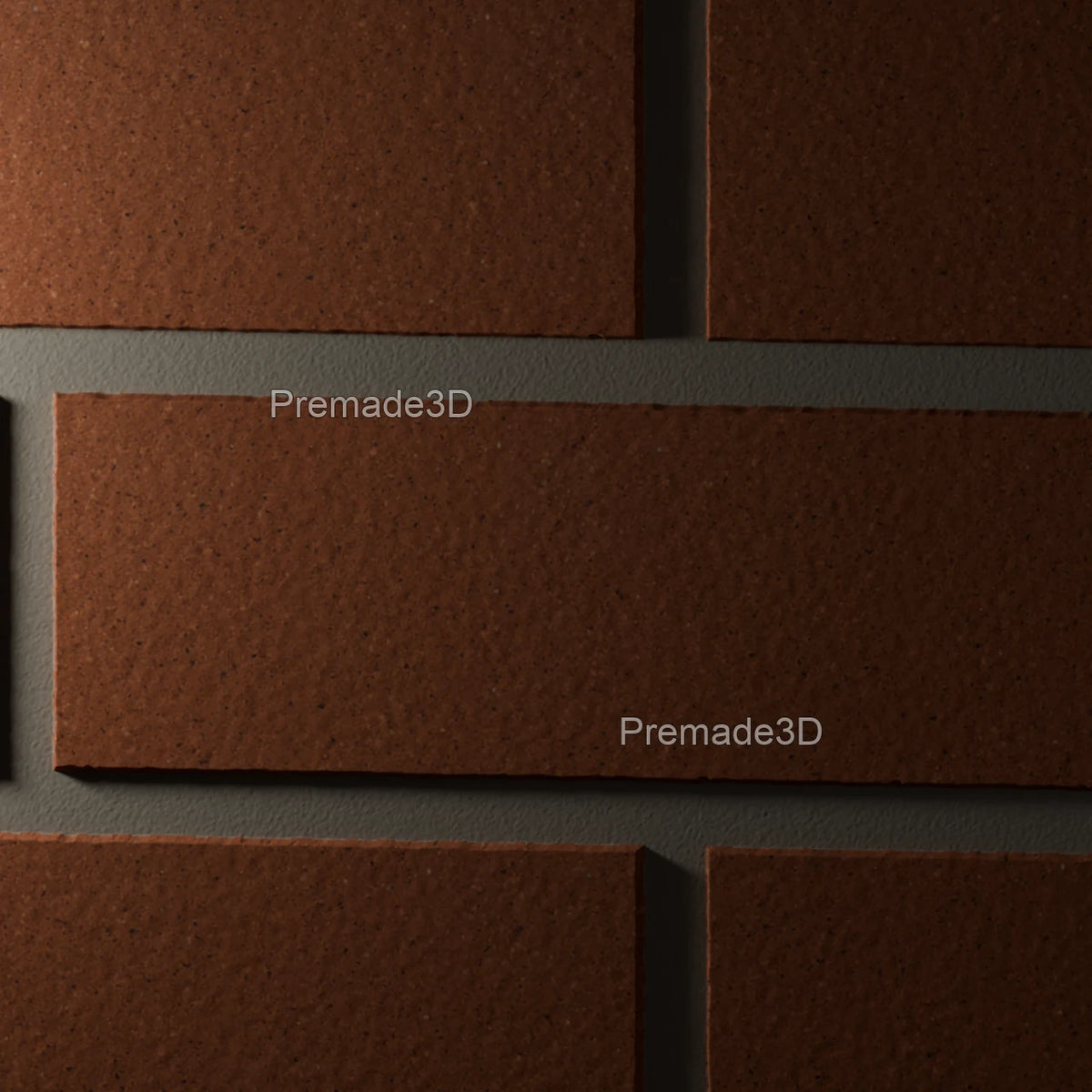
What a normal map stores
A normal map is an image that tells the renderer which way each point of a surface faces. It fakes small relief, such as pores, grain, brush marks or the bevel on a tile, without adding geometry. The light then shades the flat polygon as if those details were really there.
Most texture sets use tangent space normal maps, which is why they look mostly blue and purple. The three color channels hold the three parts of a direction:
- Red is X: whether the surface leans left or right.
- Green is Y: whether it leans up or down in the texture.
- Blue is Z: how much it faces straight out of the surface. Flat areas are mostly blue.
The glTF specification puts this in plain terms: the red, green and blue values map to X, Y and Z between -1 and 1, and the normal vectors use the convention that +X is right, +Y is up and +Z points toward the viewer. That is the OpenGL convention. The DirectX convention keeps red and blue the same and flips the meaning of green.
OpenGL vs DirectX normal maps at a glance
| OpenGL (Y+) | DirectX (Y-) | |
|---|---|---|
| Green channel means | Y points up | Y points down |
| Red and blue channels | Same in both | Same in both |
| Raised detail looks lit | From above | From below |
| Documented in | Blender (default), Godot, Unity, glTF specification | Tools whose docs state the DirectX convention |
| Converting to the other | Invert the green channel | Invert the green channel |
Because only one channel differs, the two files carry exactly the same detail. Neither is sharper or more accurate. The question is only which one your tool expects.
What each tool expects, from the official docs
- Blender: the Blender manual's Normal Map node page says Blender uses the OpenGL convention by default for rendering and baking, with the green channel's Y axis pointing up. The current manual also lists a Convention option on that node for DirectX maps from other software. It adds that the image texture should be set to Non-Color for correct results.
- Godot: the Godot manual's StandardMaterial3D page says Godot requires X+, Y+ and Z+ coordinates, known as OpenGL style, and that a DirectX style map needs its Y axis flipped.
- Unity: the Unity manual's normal map introduction says Unity uses Y+ normal maps, sometimes known as OpenGL format.
- glTF and GLB: the Khronos specification defines +Y as up for the normal texture, so a GLB should carry the OpenGL style map.
- Other tools: check your renderer or engine's documentation. Unreal Engine's texture editor, for example, has a Flip Green Channel setting that inverts green on import, which its docs describe as useful for some normal maps.
These are the tools' documented conventions, not a list of engines we have tested our materials in. For our delivered files, what we state is what the product pages state: each set includes both normal versions and an editable Blender material.
How to tell OpenGL from DirectX by eye
File names usually say it: look for GL, OpenGL, DX or DirectX in the name. When they do not, open the map in any image viewer and find a raised feature with clear edges, such as a brick, a tile or a rivet.
- OpenGL: the top edge of a raised shape is the lighter, greener side and the bottom edge is darker. The detail looks lit from above.
- DirectX: the opposite. The bottom edge is greener and the shape looks lit from below, or looks pressed in.
This follows straight from the channel meaning. The upper slope of a bump faces up, which is +Y, so in an OpenGL map its green value is high. In a DirectX map the same slope reads as -Y, so its green value is low.
Noisy surfaces such as plaster, concrete or fine wood grain are hard to judge this way, because there is no clear shape to read. Use a material with joints or edges, or test it in your scene as described below.
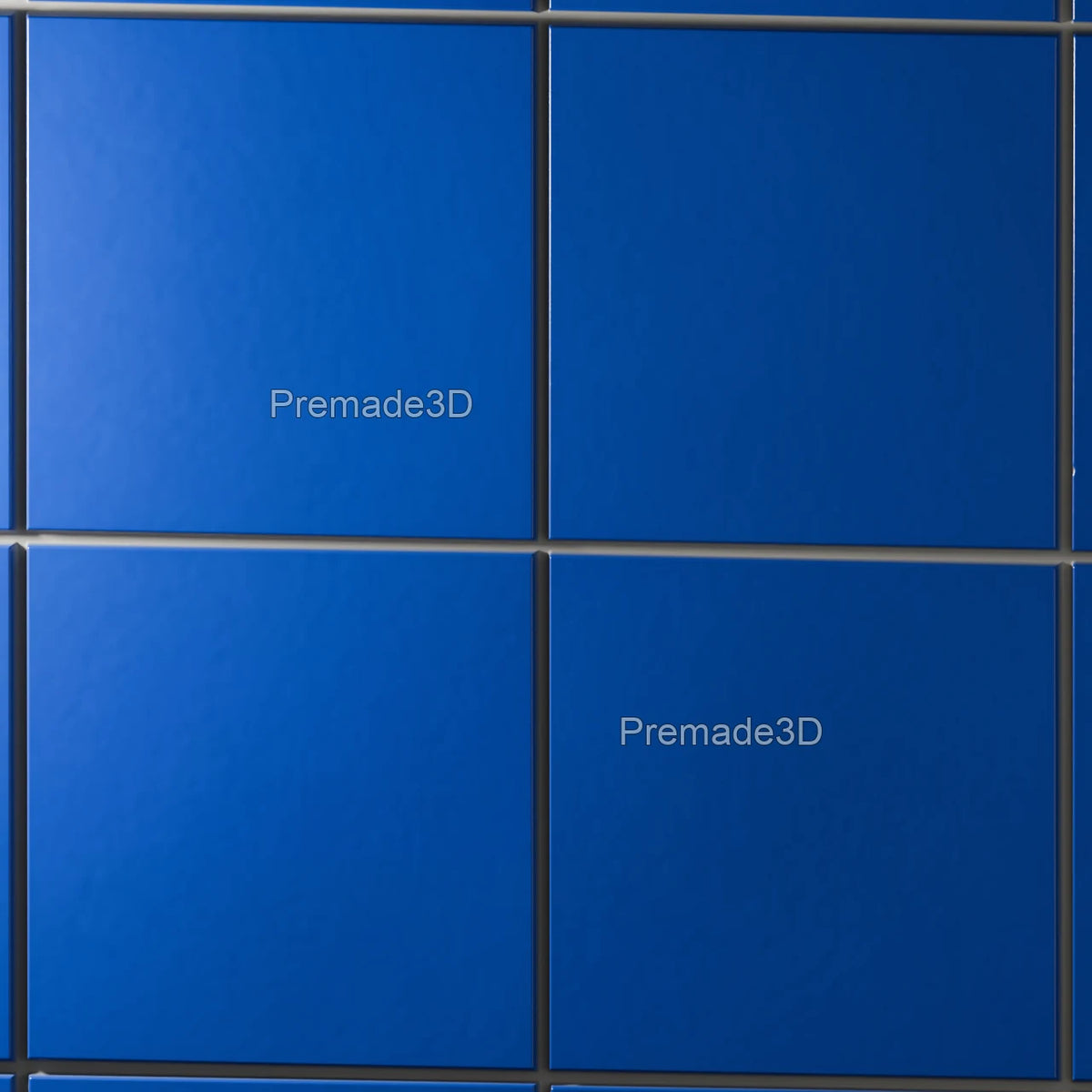
What goes wrong with the wrong map
A flipped green channel does not break a material outright, which is why it slips through. The render still looks textured. The tell is that the vertical part of the relief is lit from the wrong side.
- Bricks and tiles look slightly sunken instead of raised, with the shadow on the top edge of each joint instead of the bottom.
- The effect changes as the light moves. Under side light the surface may look fine; under top light or bottom light it looks inverted.
- Seams can appear where a mirrored or rotated UV island meets its neighbour, because one side's relief now leans the wrong way.
- Horizontal details, such as vertical grooves in a fluted tile, look correct, because only the up and down direction is flipped. This is why the problem often shows on one axis only.
The quick test: put the material on a flat plane, use a single light, and move the light from above the surface to below it. Raised details should catch light on their top edges when the light is above. If they catch it on the bottom edges, you have the other convention.
How to fix a flipped normal map
- Swap the file. If the set includes both versions, load the other one. This is the cleanest fix and needs no extra nodes.
- Use the tool's setting. In Blender, the current manual lists a Convention option on the Normal Map node. Unreal's texture editor has Flip Green Channel. Other tools often have a similar flip option.
- Invert green yourself. In an image editor, invert the green channel only and save a copy. In Blender's shader editor, you can split the color, invert green and recombine it before the Normal Map node.
Whichever route you take, keep the normal texture in Non-Color (linear) mode, as the Blender manual advises. A normal map read as color data gets its values bent by the color transform, which flattens or exaggerates the relief whatever the convention.
How our materials ship normal maps
Our material pages list every map under the 3D preview. The sets below all include both conventions, read from their live pages in October 2026, so you choose the file that matches your tool instead of converting one.
| Material | Normal maps listed on the page | Map size | One map covers |
|---|---|---|---|
| Red Clay Brick | Normal and micro normal, each in OpenGL and DirectX | 4096 px | 1 × 1 m |
| Cobalt Zellige | Normal and micro normal, each in OpenGL and DirectX | 4096 px | 1.2 × 1.2 m |
| American Walnut | Normal and micro normal, each in OpenGL and DirectX | 4096 px | 1 × 1 m |
| White Marble | Normal in OpenGL and DirectX | 4096 px | 1 × 1 m |
| Rough Stucco | Normal in OpenGL and DirectX | 4096 px | 1 × 1 m |
| Brushed Brass | OpenGL and DirectX normals | 4096 px | 65.3 × 65.3 cm |
The ten-map sets add a second normal pair labelled micro normal, again in both conventions. The same rule applies to both pairs: use the OpenGL files in Blender, Godot, Unity and GLB exports, and the DirectX files where your tool documents that convention. Each set also includes an editable Blender material and setup instructions.
How they are made: these maps are not scanned or measured from physical surfaces, so treat them as look-development materials and check the relief under your own lighting. For the rest of what a set contains and how scale works, see our guides to brick textures, tile textures and wood textures, or browse the brick materials.
Common questions
Should I use the OpenGL or DirectX normal map?
Use the one your tool documents. Blender, Godot and Unity document the OpenGL (Y+) convention, and the glTF specification defines +Y as up, so GLB files take the OpenGL map. Use DirectX where the tool's docs say so.
Which normal map does Blender use?
OpenGL by default, according to the Blender manual's Normal Map node page. The same page lists a Convention option for DirectX maps, and asks for the image to be set to Non-Color.
Is one format higher quality than the other?
No. The two store the same detail. Only the direction of the green channel differs, so converting one into the other loses nothing.
How do I convert a DirectX normal map to OpenGL?
Invert the green channel and leave red and blue alone. You can do it in an image editor, with a shader node setup, or with a flip setting in your tool.
Why does my normal map make details look sunken?
Usually because the convention does not match the tool, so the vertical relief is lit from the wrong side. Swap to the other file or flip green. If the whole surface looks washed out or too strong instead, check that the texture is set to Non-Color.
For related reading, our guide to 3D file formats compares FBX, OBJ, glTF and GLB, and the texture atlas explainer covers how UVs decide where each texel lands.
Assets in this guide
- Material
€7,00
- Material
€7,00
- Material
€7,00
- Material
€7,00
- Material
€7,00
- Material
€7,00


